Markdown is plain text with a few symbols in it. A # at the start of a line makes a heading, a - makes a list item, and ** around a word makes it bold. Because the file is only text, any app can open it, and it will still open in twenty years.
This guide covers making your first file on a Mac, the syntax you'll use most days, and the handful of rules that catch everyone out the first time.
You don't need a special app to start
Any text editor works, including TextEdit, which comes with every Mac. TextEdit opens in rich text mode, so choose Format > Make Plain Text (⇧⌘T) first. When you save, end the name with .md, for example notes.md. If TextEdit asks whether to use .txt instead, choose to keep .md.
A Markdown editor starts to pay off once a document has more than a few headings, because it shows the structure as you write and gives you shortcuts for the symbols. We compared the options in Markdown apps for Mac in 2026.
The syntax that covers most documents
Here is most of what you'll type in a normal week:
# The title of the document
## A section
### A smaller section
Paragraphs are separated by one blank line.
**bold**, *italic*, ~~struck through~~, `code`
- a bullet
- another bullet
- one level in
1. first
2. second
- [ ] a task
- [x] a finished task
[a link](https://example.com)

> A quotation.
---
The last line, three hyphens on their own, draws a horizontal rule.
| You want | Type |
|---|---|
| Heading | # to ######, then a space |
| Bold | **text** |
| Italic | *text* |
| Link | [text](address) |
| Image |  |
| Bulleted list | - at the start of the line |
| Numbered list | 1. at the start of the line |
| Task | - [ ] or - [x] |
| Quote | > at the start of the line |
| Inline code | `code` |
Code blocks
Put three backticks on the line before the code and three on the line after. Add the language name after the opening backticks and most editors will color the code:
```python
print("hello")
```
Tables
Tables weren't part of the original Markdown, but GitHub's version added them and almost every app supports them now:
| App      | Price  |
|----------|-------:|
| Typora   | $14.99 |
| MarkEdit | Free   |
The second line separates the header from the rows. A colon on the right of the dashes aligns that column to the right, and :---: centers it. The pipes don't have to line up; that's only for your eyes. If a cell needs a literal pipe, write \|.
Footnotes and highlights
Two more you'll see often. A footnote is [^1] in the text, with [^1]: The note. on a line of its own further down. A highlight is ==text==. Both are extensions, so check that the app or site you're writing for supports them. GitHub handles footnotes but not ==.
Five things that catch people out
One Return doesn't start a new line
Two lines with a single line break between them join into one paragraph. Leave a blank line to start a new paragraph. To break a line inside a paragraph, end it with a backslash \ or two spaces. GitHub comments are the well-known exception: they keep single line breaks.
No space, no heading
#Heading stays plain text; it has to be # Heading. The same goes for lists: -item is not a list item, - item is.
Underscores inside words stay put
In file_name_here the underscores do nothing, but in file*name*here the asterisks make name italic. Asterisks work inside a word; underscores don't. Use asterisks for emphasis and you'll never have to think about it.
Numbered lists count for you
Only the first number matters. 1. 1. 1. comes out as 1, 2, 3, and a list that starts at 3. counts on from 3. That's handy when you reorder items, because you don't renumber anything.
Nested items need enough indentation
A sub-item has to start where the text of its parent starts: two spaces under - , three spaces under 1. . With less, it won't nest.
Keyboard shortcuts in SSmd
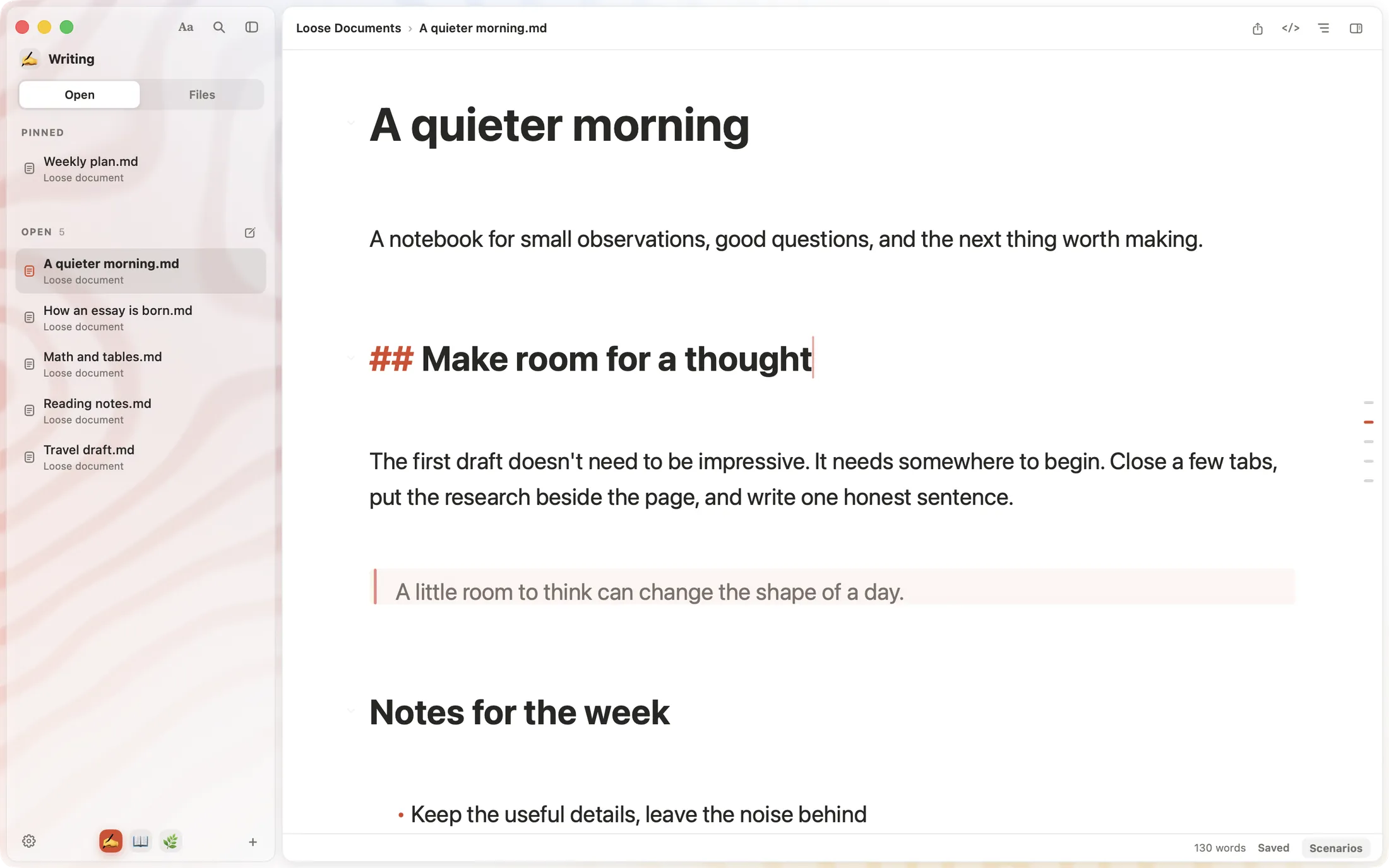
In SSmd you can type the symbols, or use shortcuts that work like the ones in other Mac apps. Either way, the markup only shows on the line you are editing and gets out of the way when you move on.
| Action | Shortcut |
|---|---|
| Heading 1 to 6 | ⌘1 to ⌘6 |
| Back to body text | ⌘0 |
| Bigger or smaller heading | ⌘+ / ⌘- |
| Bold, italic | ⌘B, ⌘I |
| Inline code | ⌃` |
| Strikethrough | ⇧⌃` |
| Highlight | ⇧⌘M |
| Link | ⌘K |
| Link to another document | ⇧⌘K |
| Bulleted, numbered, task list | ⌥⌘U, ⌥⌘O, ⌥⌘X |
| Indent, outdent | ⌘], ⌘[ |
| Quote | ⌥⌘Q |
| Code block | ⌥⌘C |
| Math block, inline math | ⌥⌘B, ⌃M |
| Footnote | ⌥⌘R |
| Horizontal rule | ⌥⌘- |
| Open any document by name | ⌘P |
Where to go next
The rules in this guide come from two specifications: CommonMark, which pins down the core syntax, and GitHub Flavored Markdown, which adds tables, task lists and strikethrough. You won't need to read them, but they settle arguments.
When a paragraph isn't enough to explain a process, draw it. Mermaid diagrams in Markdown shows how to make flowcharts and sequence diagrams out of a few lines of text.